Briefing is a secure video chat for groups that runs right in the browser. No account, nothing to install: a link is all you need. Video, audio, chat and files travel directly between the participants; the server only helps you find each other.
What Briefing can do
All features at a glance: Features.
Quick start
- Open the Briefing start page, enter a room name (or keep the suggested one) and click Enter.
- The lobby shows your camera preview. Switch on camera and microphone, enter your name and click Join.
- Invite others via Invite: copy the link, share it, or let them scan the QR code.
- To leave, click End session in the toolbar.
Rooms
Every Briefing session takes place in a room. A room is nothing but a link, for example https://brie.fi/ng/project#k7Fq.... It has two parts:
- the room name before the
#, which you can choose freely, and - the password after the
#, which Briefing creates automatically when you first enter and writes into the address bar.
The password never leaves your browser - it is not sent to the server. Whoever has the full link gets into the room; whoever doesn’t can neither find nor enter it. The server does not even know the room name, only an irreversible id derived from name and password.
That means:
- Always share the full link, including the part after the
#. The easiest way is Invite (see below). - Same name, different password = different room. Any number of separate rooms can exist under the same name. A wrong password therefore doesn’t produce an error, it leads into an empty room.
- A link without a password opens the Password needed dialog: enter the password you received some other way, or click Start a new room to open your own room under that name.
Changing the password
Under Invite you’ll find the Password of room. Change lets you set your own password, for example a word that’s easy to read out. This moves you to a new room - so send the new link afterwards. The same way you enter a room whose password someone told you in person.
Recently visited rooms
Depending on the instance, the start page shows the previously visited rooms, so you can quickly return to a room you know. The list is stored only in your browser.
Joining by QR code
If the instance offers it, the start page has Scan QR code. Point the camera at the QR code of a Briefing room and you join it right away.
Lobby
Before you enter a room you land in the lobby (Ready to join?). There you can take your time to:
- check the camera preview,
- switch camera and microphone on or off with the round switches,
- use the small arrow on each switch to pick a device, set the speakers and test the sound,
- enter your display name.
Only Join takes you into the room. Briefing never enters a room on its own - so nobody can put you live unnoticed just because a link was opened in the background.
On your very first visit camera and microphone are off. Once you switch them on, Briefing remembers your choice for this device. Switch them during a call, and they start that way again next time in this room, also after a reload. Being muted by a moderator or push-to-talk does not count. “Off” really means off: the camera light goes out, it’s not just muted.
Start as chat only
Below the start button on the start page you’ll find Start as chat only. The room then starts as a plain text chat: no lobby, no request for camera or microphone. You can switch both on at any time from the toolbar and turn the chat into an audio or video call. Only then does the browser ask for permission.
Next to it is the Moderated switch: it starts a room with roles, as a video room or as a chat (see Moderated rooms).
Inviting
Invite in the toolbar brings others in:
- Copy link puts the full room link on the clipboard.
- Share link opens your device’s share menu (messenger, mail, …).
- The QR code can be scanned with a phone; Show larger enlarges it, for example for a projector.
While you’re alone in the room, the stage shows a hint with the same options.
Camera and microphone
The camera and microphone switches sit in the toolbar. A click turns them on or off; the menu next to them offers:
- device selection for camera, microphone and - where the browser allows it - speakers,
- Test sound output and a level meter for the microphone,
- Do the others hear me? (in a room, with the microphone on): say a few words, and after five seconds a notice tells you who hears you, who hears you only faintly and who gets no sound from you,
- More cameras: an additional camera (a document camera or the back camera of a phone, for example) appears as a tile of its own, without sound. Devices that can run only one camera at a time (such as the iPhone) tell you so instead of losing the main camera.
Under Media in the settings you also choose video and audio quality, frame rate and whether your own picture is flipped.
While camera or microphone are on and being sent, their button shows in the accent color, so you see at a glance what the others get from you.
Push-to-talk
While your microphone is off, hold the V key to talk. Let go and you’re muted again. On phones and tablets, press and hold the microphone button in the toolbar instead. While you talk, your own tile shows a green microphone next to your name. Switching to another window or tab mutes you right away.
Push-to-talk works only after you have switched the microphone on once during the call. The others only see your microphone go on and off, as with the button.
Video quality
Briefing adapts video quality automatically: every participant learns how large their picture is currently shown to the others and sends only as much as needed. A small thumbnail gets a small picture, a maximized tile full quality, a hidden tab just a slow preview. That saves bandwidth and battery without you having to set anything. Shared screens are exempt and always arrive in full quality.
If your computer or connection is slow, the Performance section in the settings helps:
- Video I send: Balanced or Economical sends a smaller picture and spares your computer and upload.
- Video I receive: Economical gets you the others as small pictures that need less processing and download.
- Current traffic shows how much you are sending and receiving right now, with a small graph of the last minute.
Automatic gives the best quality and is the default.
Video effects on Apple devices
On Apple devices, background blur, Portrait lighting, Center Stage and similar effects are provided by the operating system for every camera app, so Briefing gets them too:
Stage and presentation
The stage is the large area in the middle. Every camera, shared screen and open document is a tile of its own there. While a screen or document is shown, it gets the large area and the cameras move to the thumbnails. Every tile can be maximized or minimized and resized by hand.
The share menu (layers icon in the toolbar) gathers everything that goes on stage: screens, documents and fullscreen.
Files right onto the stage: drop a file on the window, pick it with Open file… in the share menu or bring it there from the chat with Show on stage, and Briefing opens what fits: a PDF as slides, Markdown as Markdown slides, a video or audio file in the video player, a GPX track as a map and an HTML file as an HTML page. For HTML and Markdown Briefing asks whether to show it or Edit together - then it becomes a shared text with headings, lists, quotes, code and links, without scripts, styles and images.
Sharing your screen
Share screen lets you pick a screen, window or tab. You can share several at once, each in its own tile. To stop, use the share menu (Stop all shares), the tile itself (Stop sharing) or your browser’s own stop button.
With sound: share a browser tab in Chrome or Edge and turn on sharing the tab audio in the browser’s picker, and everybody hears the video or music playing in that tab. Safari and Firefox share the picture only.
Some browsers, especially on phones, cannot share the screen. You still see the presentations of others there.
Documents
Open document in the share menu lets any participant put shared documents on stage. Which kinds are available depends on the instance, for example:
- Whiteboard or Drawing for sketching together,
- Text or Rich text for writing together,
- Chess.
Everyone sees changes instantly, and simultaneous edits by several people are merged cleanly. Several documents can be open, also several of the same kind (at most eight by default).
An Excalidraw drawing can be switched to View only for everybody in its menu at the top left: panning and zooming still work, nobody draws until someone switches it off again. If only one person should reliably draw, use a moderated room - there only moderators and presenters edit documents, everybody else sees them read-only.
Documents are not saved
Close for everybody closes a document for all participants, and its content is gone. The content is also lost once everybody has left the room. Save important results beforehand, for example with a screenshot or copy and paste.
Presenting slides
If the instance offers it, Slides in the share menu lets you share a PDF, and everybody in the room sees the same page. The first slide appears right away, the rest loads in the background.
- Turn pages with the arrow keys, Space, Page Up/Down and Home/End - so presenter clickers work too.
- Who may change slides decides whether only you or everybody may turn them.
- The Presenter view shows you the next slide, the elapsed time and all pages at a glance.
- Anyone who turns pages on their own leaves the presentation for a moment and gets back with Back to current slide. Whoever joins later starts on the current page.
The PDF is not uploaded: the others get it directly from you, end-to-end encrypted, and keep it until they leave the room. So the slides stay even when you leave.
Markdown slides
Markdown slides in the share menu shows a deck written in Markdown - from Slidev, Obsidian (Slides and Advanced Slides), reveal.js or Marp. Everybody sees the same slide and the same click step.
- Share a single
.mdfile, a ZIP, or with Choose folder … a whole folder with images. - The usual layouts, click steps, highlighted code, math, Mermaid diagrams, backgrounds, headers and footers are supported.
- Paging, Who may change slides and Back to current slide work as with PDF slides. The presenter view also shows your notes for the slide.
- The laser pointer stays on its slide: page on and it disappears.
Nothing in the file runs: no scripts, no Vue components, and images from the web are not loaded, only the ones that come along. The file goes directly and encrypted to the others, as with PDF slides.
How to write such a presentation - slides, click steps, layouts, notes, images, code and diagrams - is in the guide Markdown slides. Demo presentation in the empty document shows it all, explained by itself.
HTML page
HTML page in the share menu shows an HTML file to everybody, scrolling along with you. Whoever scrolls on their own reads on alone and comes back with Back to shared position.
The page’s scripts do not run, and it loads nothing from elsewhere - whatever is not inside the file itself, such as images in separate files next to it, is missing. Links to the web open in a new tab. The file is not uploaded, the others get it directly from you, end-to-end encrypted.
Map and GPS tracks
If the instance offers it, Map in the share menu opens a map everybody sees in the same view - for example to plan a trip together. A new map starts where you last looked at a map. With the upload button you can add a GPX file - a hike, a bike ride, a planned route - and everybody sees the track with its elevation profile, distance, ascent, descent and duration. On instances without a background map, Map shows only tracks.
- Drag to move, scroll or pinch to zoom, double-click to zoom in. The buttons show the whole track again.
- The magnifier searches for a place: type a name or address and press Enter, pick one if there are several. Coordinates like
51.1, 10.4always work, names only if the instance offers place search. Whoever may move the view takes everybody along; only you see the pin on the place found. - Click on the track or the elevation profile to mark a spot for everybody. The laser pointer works on the map too and stays on its spot while you move the map.
- Who may move the view decides whether only you or everybody takes the others along. Anyone else who moves the view looks around alone and gets back with Back to shared view.
Whether a background map shows depends on the instance; without one the track is drawn on a plain background. The file is not uploaded: the others get it directly from you, end-to-end encrypted, and keep it until they leave the room.
Watching a video together
If the instance offers it, Video player in the share menu lets you pick a video on your device, and everybody in the room watches it with you. Play, pause and seeking happen for all, and on pause everybody stops at the same frame. Volume, mute and fullscreen everybody sets for themselves.
The video is not uploaded: the others stream the parts they are watching directly from you, end-to-end encrypted, about a minute ahead each. An HD video needs about 5 Mbit/s of your upload per viewer. When you leave the room, the video is gone for the others. MP4 and WebM are the safest choice, they play in every browser. Ideas for the evening: Movie night.
Laser pointer
The laser pointer lets you point at a shared screen, at something you hold into the camera, or at a video or slide shown together. Everybody sees the dot at the same spot, whatever the size of their window.
- Switch it on with Laser pointer in the share menu, or just hold the L key while moving the mouse. On a tablet, drag with your finger while it is on.
- Hold the mouse button (or Space) to draw: the line stays a few seconds - enough to underline or circle something - and then fades.
- Escape switches the laser pointer off.
Every participant has their own color, and the name shows briefly when a pointer appears. The positions go directly and encrypted to the others and are not kept.
Timer and break
Timer and break in the share menu starts a countdown for the whole room, in chat rooms too: a Coffee break, a Timebox for an agenda item or Speaking time, with 5, 10 or 15 minutes or a custom length and an optional label.
- Everybody sees the same countdown as a small pill at the top right of the room. A click on it offers Pause, +1 min, +5 min and Stop.
- During a coffee break the stage shows a large card with the remaining time and when the break ends. Everybody can hide it for themselves.
- When the time is up, everybody gets a short notice. A soft sound for it can be switched on under Settings → Timer.
In moderated rooms only moderators start and change the timer.
Recording
If the instance offers it, you can record the call in your own browser and keep it as a file on your device. Nothing is recorded on the server.
Record … in the share menu opens a small dialog with up to four choices, one click starts:
- Sound records what you hear - everybody’s microphone and the sound of shared screens - plus your own microphone while it is on.
- Sound, one track per person records the same mix and, next to it, everybody on a track of their own, e.g. for editing a podcast. Stopping saves a ZIP file with the mix, one file per person (
01 Anna.m4a,02 Ben.m4a, …) andtracks.jsonwith the names and the offset of everybody who joined later. Place all tracks at the start and they line up in any editor. The others’ tracks are in call quality. - Podcast, best quality per person asks everybody else to agree. Whoever agrees records their own microphone losslessly in their own browser, and the track reaches you encrypted while the call is still running. Stopping saves a ZIP file with one WAV file per person and a ready project for Reaper and Ultraschall. All about it: Podcast and interview.
- With video additionally asks which tab, window or screen to record. Chrome and Edge offer the current tab first, which records the call as you see it, whiteboard and slides included.
- While recording, a red pill at the top right of the room shows the elapsed time. A click on it stops the recording, as do Stop recording in the share menu, stopping the share in the browser’s own bar or leaving the room.
- The recording then lands in your downloads, e.g.
briefing-2026-10-11-1432.mp4(MP4 or M4A in Chrome, Edge and Safari, WebM in Firefox).
Nobody records unnoticed: when somebody starts, everybody else gets a notice that stays until they close it, and the red pill lists everybody who records, for as long as they do. Whoever joins during a recording gets the notice too. In moderated rooms only moderators may record.
On phones and tablets mostly only sound can be recorded. The recording runs only while the tab is open; closing it or leaving the room asks first. If the tab was closed anyway, Briefing offers the recording for saving the next time you enter the same room with the same password, for up to seven days.
Captions and transcript
If the instance offers it, Briefing turns what is said into text - in your own browser, with a speech model loaded once from the instance. There is no speech service in the cloud, and nobody has to set a language: it is detected.
- Show captions in the share menu (key U) shows what the others say at the bottom of the stage, with the name of who is speaking. Words appear while they are spoken and become the finished line at the next pause. Only whoever switches captions on sees them, and they are kept nowhere.
- Write transcript in the share menu (key T) keeps what is said as text: one paragraph per turn, with name and time. Every paragraph can be corrected right there. Copy and Save take the transcript as Markdown, plain text or a subtitle file (SRT, WebVTT) with times from its start - matching a recording started at the same time. On stop it lands in your downloads as a file; Continue transcript later goes on writing the same one.
- Both can run at the same time. The Transcript tab in the sidebar has two pages: Text shows the transcript (or the captions while there is none), Settings holds everything about it, including Load speech model now, so it starts right away later. Behind each name you see who is speaking and what the speech model is still working on.
- Share with everybody in the room shows your transcript to the others live, with Others may edit they can write along. Include chat adds chat messages from then on.
- Translate into translates captions and transcript into English, German, French, Spanish, Italian or Dutch, only for you and on your device. Captions then show the translation (the original on hover), the transcript the translation below every paragraph, the saved file as a section of its own. Somebody switching languages is translated sentence by sentence.
- Depending on the instance, Settings → Captions and transcript also sets text size and position of captions, whether the original stays below the translation, and the speech model. Caption my own voice lets you try captions alone.
The first time, the browser loads the speech model (a few hundred MB), later it comes from its cache. Clear speech is written almost without errors, names and technical terms now and then wrong; the translation is fair, not perfect.
Everybody in the room sees who shows captions or writes a transcript, for as long as it runs. In moderated rooms only moderators may write a transcript, captions anybody.
Layout
Under Presentation in the settings you decide how stage and thumbnails relate:
- Floating - the thumbnails float above the stage,
- Overlapping - the stage partly covers the thumbnails,
- Side by Side - stage and thumbnails don’t overlap.
You also choose Alignment and Orientation of the thumbnails and the spacing. Fullscreen in the share menu makes Briefing use the whole screen.
With Speaker large, the stage shows whoever currently holds the floor large and everybody else as thumbnails, following the conversation without jumping around. It only affects your own screen and rests while a screen or document is shown large or the layout is synced for everyone.
Chat and files
The chat is a column of its own next to the stage, on narrow screens a sheet over the stage. Messages go encrypted directly to the other participants.
- Enter sends, Shift+Enter starts a new line. If you turn off Enter sends in the settings, it’s the other way round and Cmd/Ctrl+Enter sends.
- The emoji button inserts emoji.
- In the settings you can turn profile pictures, times and notifications for the chat on or off.
Sharing files
Drag a file into the chat or use the + button next to the input. On touch devices it also lets you Take photo directly.
- Files up to 16 MB arrive right away. Larger ones are offered and transferred only when someone clicks Receive.
- Size is practically limited only by the browser’s storage.
- If a transfer breaks off, it resumes from another person who already has the file.
- A file is available only as long as someone in the room shares it. Leaving the room removes it from the browser’s storage - so download it first if you want to keep it.
- Only images get a preview. Other files you open with your device’s apps after downloading.
Participants
The Participants list in the sidebar shows who is in the room and whose camera and microphone are on.
- Everyone in the room sees your display name, for example on stage and in the chat. You change it in the lobby or in the settings.
- Optionally you set a profile picture. It appears while your camera is off and next to your chat messages. It is cropped in the browser, stays stored in your browser and goes only to the other participants, never to the server. Without a picture Briefing shows your initials.
- When someone leaves, the others get a short notice with name and time. Brief connection drops are not reported.
- Whoever is speaking gets a colored ring around their tile and a small level indicator next to their name, on your own tile too. Short sounds like a cough don’t count, and pauses between words keep the highlight. This is detected only in your browser, from the sound it plays anyway.
Moderated rooms
For classes, consultations or events there are rooms with roles. Turn on Moderated below the start button on the start page before you start the room - as a video room or, together with Start as chat only, as a chat. You are then the Moderator.
The roles:
- Moderator - assigns roles and may do everything.
- Presenter - may share screens, put documents, slides and videos on stage, edit them and turn slides for everybody.
- Participant - uses camera, microphone, chat, raise hand, reactions and the laser pointer, but cannot share anything. Documents on stage are read-only for them.
- Viewer - watches and listens. Camera, microphone, screen sharing and laser pointer stay off; chat, raise hand and reactions work.
Moderation happens in the Participants list of the sidebar. There moderators get a menu on each person to change their role, mute them, ask them to stop screen sharing or remove them from the call. Above the list are Mute everyone (everybody except moderators, including whoever joins later) and Copy moderator link. Everybody else sees the roles as small icons next to the names.
- Muting means nobody hears the person any more, and their microphone stays off until a moderator lifts the mute with Allow to unmute. They then switch it on themselves - a moderator can never switch anybody’s microphone or camera on.
- Removing closes the connection and refuses the person for the rest of the call. Without a media server, everybody else moves to a new room link automatically, and the old one then leads into an empty room. From then on share only the new link from Invite.
- The moderator link makes everybody who opens it a moderator. Share it only with other moderators, never with guests.
Moderating a running session
If you are alone in a room without moderation, the participants list offers Moderate this session. Everybody who joins takes over that moderation. It ends when everybody has left the room and does not protect against somebody else being there first. For that, start a moderated room right away.
Roles and requests are signed with a moderator key that never leaves the moderator’s browser. Every app checks them itself. The server does not even learn that a room is moderated.
Raise hand and reactions
In moderated rooms - video and chat alike - the toolbar has the Raise hand and reactions button:
- Raise hand (key H): everybody sees a badge with your place in line next to your name, and a “✋ N” pill at the top right of the room counts the raised hands. A click on it opens the list in the order the hands went up. Moderators can lower single hands or all of them.
- Reactions: thumbs up, applause, heart, laughter, surprise and celebration float up over your video for a few seconds; in a chat room they show briefly at the top right with your name.
Hands and reactions go directly and encrypted to the others, never through the server, and are not stored. Rooms without moderation have neither.
Keyboard shortcuts
In the room you control the most important things with the keyboard. ? shows all keys, grouped by feature. The same list is under Settings → Keyboard shortcuts.
| Key | Action |
|---|---|
| M | Microphone on/off (also Ctrl+Shift+M, ⇧⌘M on a Mac) |
| C | Camera on/off (also Ctrl+Shift+O, ⇧⌘O on a Mac) |
| Hold V | Talk while held (see Push-to-talk) |
| F | Fullscreen on/off |
| H | Raise or lower your hand (in moderated rooms) |
| Hold L | Laser pointer while held |
| U | Show or hide captions |
| T | Start or stop the transcript |
The keys pause while you type in a text field or a dialog is open. Depending on the instance you can add or remove your own keys in the settings; your choice stays in this browser only. Operators can turn off single-key shortcuts entirely, for example for people who use speech input - then only the combinations apply.
Settings
You open the Settings from the toolbar. Depending on the instance you’ll find:
- Users - display name and profile picture,
- Media - devices, video and audio quality, frame rate, flip video,
- Performance - video you send and receive, current traffic (see Video quality),
- Presentation - stage layout and Speaker large (see Layout),
- Chat - Enter behavior, profile pictures, times, notifications,
- Keyboard shortcuts - see Keyboard shortcuts,
- Captions and transcript - translation, own voice, look of the captions, speech model (see Captions and transcript),
- Screen - Keep screen on during calls: while you are in a room the display does not turn off, so phones and tablets don’t interrupt the call. On by default,
- Timer - sound at the end of a timer,
- Themes - Dark mode and your own Accent color for this device,
- Language - Briefing is available in 17 languages: Arabic, Chinese, Dutch, English, French, German, Indonesian, Italian, Japanese, Korean, Polish, Portuguese, Romanian, Russian, Spanish, Turkish and Ukrainian. Arabic runs right to left,
- Safety codes - see Security,
- Notifications - see Notifications,
- Error reports - see Error reports,
- Network status - connection to the server and to the other participants.
All settings are stored only in your browser.
Notifications
If the instance offers it, you can subscribe to a room: you get notified as soon as someone else enters the room, even while you’re not in it yourself, and join the conversation with one click.
- In the room, open the settings and then Notifications.
- Turn on Subscribe to this room and confirm the browser’s prompt.
The subscription applies to exactly this room. Turning it off works the same way. Whoever enters a subscribed room first is asked whether to notify the subscribers - nothing goes out unasked. The notification contains only an id of the room, no names and no content.
Safari and iPhone
In Safari, notifications only work after you add Briefing to the Home Screen or the Dock (see Install as an app). Notifications appear only while the browser is running.
Security and privacy
Briefing is built so that you don’t have to trust the server: it only brokers, it cannot listen in.
The standard we hold Briefing to is summed up in Our principles. How this works in detail - with diagrams of the connection setup, the key and the safety codes - is explained on How Briefing works.
- End-to-end encryption: all connection setup messages, the chat, files and documents are encrypted with the room password. Video and audio run over WebRTC’s encrypted direct connection. The server sees only unreadable data.
- Direct instead of via the server: video, audio, chat and files go directly from browser to browser. If a firewall prevents that, a relay server (TURN) helps out, but it only passes on encrypted packets.
- No account, no tracking: no sign-up, no tracking cookies, no advertising.
- Nothing is stored on the server: Briefing stores neither video nor audio, chat, files or documents. Everything exists only in the participants’ browsers for the duration of the call. Whoever records or writes a transcript keeps the file on their own device, and everybody in the room sees it.
- Keeps running when the server is gone: a running call survives a restart or outage of the server. It is only needed to enter a room.
Instances with a media server
For larger groups the operator can use a media server (LiveKit). Video and audio then go through that server instead of directly from browser to browser, but stay end-to-end encrypted: every frame is encrypted in the browser, and the server only forwards what it cannot read. The participants negotiate the keys anew for every call and replace them whenever someone joins or leaves, so someone who learns the room link later cannot decrypt recorded traffic. Safety codes are not available on such instances.
Safety codes
Under Settings → Safety codes Briefing shows six symbols for each participant. They are computed from the keys of the actual direct connection. Compare them, for example by reading them out to each other:
- If they match, your connection is end-to-end encrypted and nobody sits in between - not even someone who controls the server.
- If they don’t match, end the call and start a new room with a new link that you exchange some other way.
Error reports
When an error occurs, Briefing asks whether it may send an error report. It contains technical details only - no audio, no video, no chat. Under Settings → Error reports you choose Ask on error, Always send or Never send. Beta versions send error reports automatically.
Install as an app
Briefing can be installed like an app and then starts in a window of its own:
- Chrome and Edge: install icon on the right of the address bar.
- Safari on the Mac: File → Add to Dock.
- iPhone and iPad: share button → Add to Home Screen.
- Android: browser menu → Install app or Add to Home screen.
Updates
When a new version is available, Briefing never interrupts a running call. Outside a call, one click on Reload is enough. During a call, the new version loads as soon as you leave the room. Update now does it right away: the call pauses for a few seconds, then you’re back in the room with the same camera and microphone settings.
Connect without server
Experimental
This feature is experimental and not available on every instance. It may not connect in every network, and details may still change.
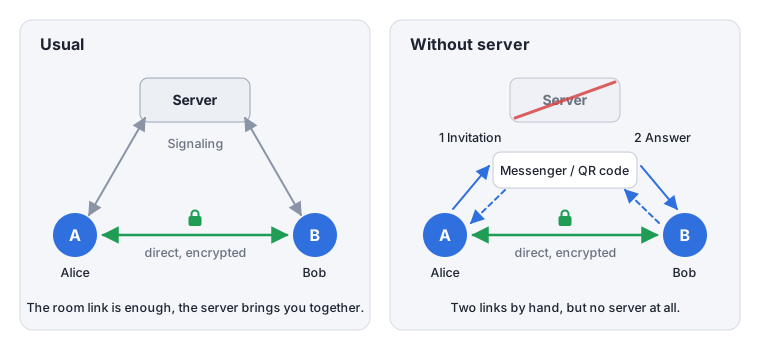
Usually a server brings you together: you open the same room link, and the server passes the connection details along (signaling) before the call runs directly between you. Without a server you do this introduction yourselves - with two links you exchange by messenger or QR code.
Connect without server starts a call without any server at all - not even to find each other:
- Send the invitation: click Create invitation and send the link by messenger, or let the other person scan the QR code. Keep the page open.
- Enter the answer: the invited person sends an answer back. Paste the answer link or scan its QR code - the call starts right away.
Invite someone else brings in more people; they are connected directly with everyone. The invitation contains your network addresses, so send it only to the person you invite. Compare the safety codes afterwards. It works best within one network or with ordinary home internet connections; strict company or mobile networks often block direct connections. Notifications are not available in direct calls.
Troubleshooting
Camera or microphone don’t work
- If you once denied access, Access not allowed appears. Allow camera and microphone via the icon in the browser’s address bar and click Try again.
- If a camera or microphone is missing, busy or stops during the call (unplugged, taken by another program), a notice says so and offers Try again or Turn on again.
- Check in the menu next to the camera or microphone switch that the right device is selected.
- Close other programs that use the camera (other video tools, a second Briefing tab).
- On the Mac: System Settings → Privacy & Security → Camera and Microphone must allow the browser.
Others can’t hear me, or I hear nothing
- Is your microphone on? The level meter in the microphone menu shows whether sound comes in.
- Use Test sound output to check that your speakers work and are selected correctly.
- Do the others hear me? in the microphone menu asks everybody in the room. If nobody hears you and the notice says your microphone picked up hardly anything, pick another microphone; if only single people don’t hear you, the problem is on their side or in the connection.
- Some browsers play sound only after a click on the page. If Click to start video appears, click it.
The connection doesn’t come up
- If a tile stays at Waiting for connection, a firewall is often blocking the direct connection, for example in company or hotel networks. Try another network, such as a phone’s hotspot.
- Settings → Network status shows whether the server is reachable and how the connections to the others are doing.
- If Briefing warns that the browser found no network address for the call, the others may not get your picture and sound. Usually a privacy extension is behind it, a WebRTC setting of the browser (e.g. in ungoogled-chromium), a company policy or, on a Mac, the missing Local Network permission under System Settings → Privacy & Security.
- If Briefing reports that the browser does not support video calls (WebRTC), WebRTC is disabled by a setting or extension. Check ad blockers and privacy extensions, or use an up-to-date browser.
I end up in an empty room
Most likely the password is wrong, or the link was passed on without the part after the # (see Rooms). Ask for the full link again.
More help
If you can’t find an answer here, write to us via the support form.
For operators
Briefing can be self-hosted as a Docker image, free for private use. The image holds everything a call needs, but not every plugin. Every feature is a plugin that is switched on, off and configured in the admin area at /config. There you’ll also find Checks that test signaling, STUN, TURN and notifications from your own browser, plus anonymous Statistics. Further plugins, commercial and white-label use require a commercial license.
- Single sign-on: instead of typing the admin token, admins sign in through your own OpenID Connect service (Pocket ID, Authelia, Keycloak, Authentik, …). Nothing is stored on the server for it.
- Connections through strict firewalls: Briefing brings its own STUN server. A TURN server that relays connections from very restrictive networks is yours to run, usually coturn; the TURN plugin describes the setup.
- Media server for larger groups (not in the free edition): the LiveKit plugin routes video and audio through your own LiveKit server or LiveKit Cloud, still end-to-end encrypted. The plugin documentation describes the setup, and the check in the admin area also verifies API key and secret.
- Bandwidth limits: under Camera and microphone you set the highest camera resolution, frame rate and bitrate and the highest screen sharing bitrate, with LiveKit also the participants per room.
- Every plugin has its documentation in the admin area (book icon): what it does, what it needs, its settings and what it means for privacy.
- Your own plugins: build them with the public plugin SDK, see Build plugins for Briefing.