The multitrack output is for livecasts and for podcasts you mix live: in Reaper or Ultraschall every guest arrives on a track of their own while the conversation runs, and you send your own microphone, jingles and clips back into the call. Briefing only connects you with your guests; mixing, recording and broadcasting stay in your studio program.
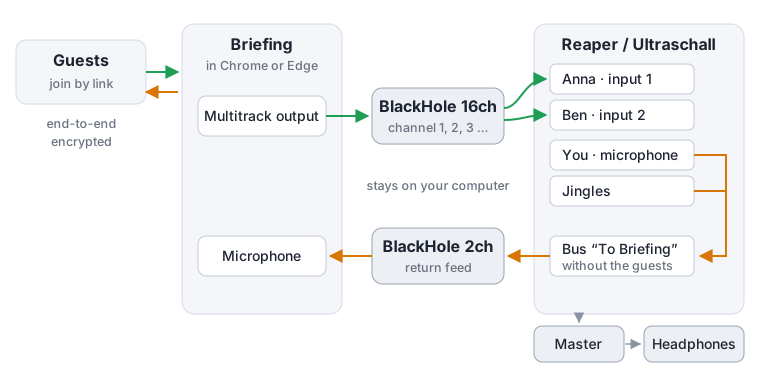
- Briefing sends every guest on a channel of their own to the virtual device BlackHole 16ch: the first guest on channel 1, the next on channel 2, and so on.
- Reaper takes each channel as the input of a track of its own.
- A bus in Reaper sends your microphone and jingles, without the guests, to the virtual device BlackHole 2ch. Briefing uses it as your microphone, so your guests hear you but not themselves.
- You listen to Reaper’s master on headphones.
The connection to your guests stays end-to-end encrypted. Their sound is decrypted in your browser, as always, and from there it only goes to the virtual devices on your own computer.
For editing in best quality
The tracks of the multitrack output are what arrives over the internet, in call quality. If you edit the episode afterwards, also start Podcast, best quality per person: every person is then recorded losslessly in their own browser and you get a ready Reaper project. The live tracks are your broadcast and backup. All about it: Podcast and interview.
For macOS
This guide and our tests cover macOS with Chrome or Edge. On Windows and Linux Briefing offers the multitrack output in the same browsers as well, but it has not been tested there yet. Firefox and Safari do not have it.
What you need
- A Mac. We describe the setup for macOS; Windows and Linux work in principle with other virtual devices (see questions).
- Chrome or Edge. Firefox and Safari cannot send sound to a chosen device; there the section is missing from the settings.
- Reaper, optionally with Ultraschall on top. Reaper can be tried 60 days for free, Ultraschall is free.
- BlackHole 16ch and BlackHole 2ch, two free virtual audio devices.
- An audio interface or USB microphone, and headphones.
- The multitrack output must be switched on for your Briefing instance (plugin
multitrack).
1. Install BlackHole
Download BlackHole 16ch and BlackHole 2ch from existential.audio/blackhole and install both. With Homebrew it is one line:
brew install --cask blackhole-16ch blackhole-2chThe installer asks for your password. If the devices do not show up afterwards, restart the Mac.
2. Create an aggregate device
Reaper uses one device for input and output on macOS. Combine everything into one:
- Open Audio MIDI Setup (Applications → Utilities).
- Click + at the bottom left and choose Create Aggregate Device.
- Under Use, tick your audio interface - or your microphone and your headphones -, BlackHole 16ch and BlackHole 2ch. Reaper only sees what is ticked here: without a microphone in it, your own voice is missing.
- Choose your real hardware (the audio interface, or the headphones) as Sync Source (older macOS: Clock Source). In the Sync column, lock all other devices (drift correction on): both BlackHole devices and, if you use them, a separate microphone.
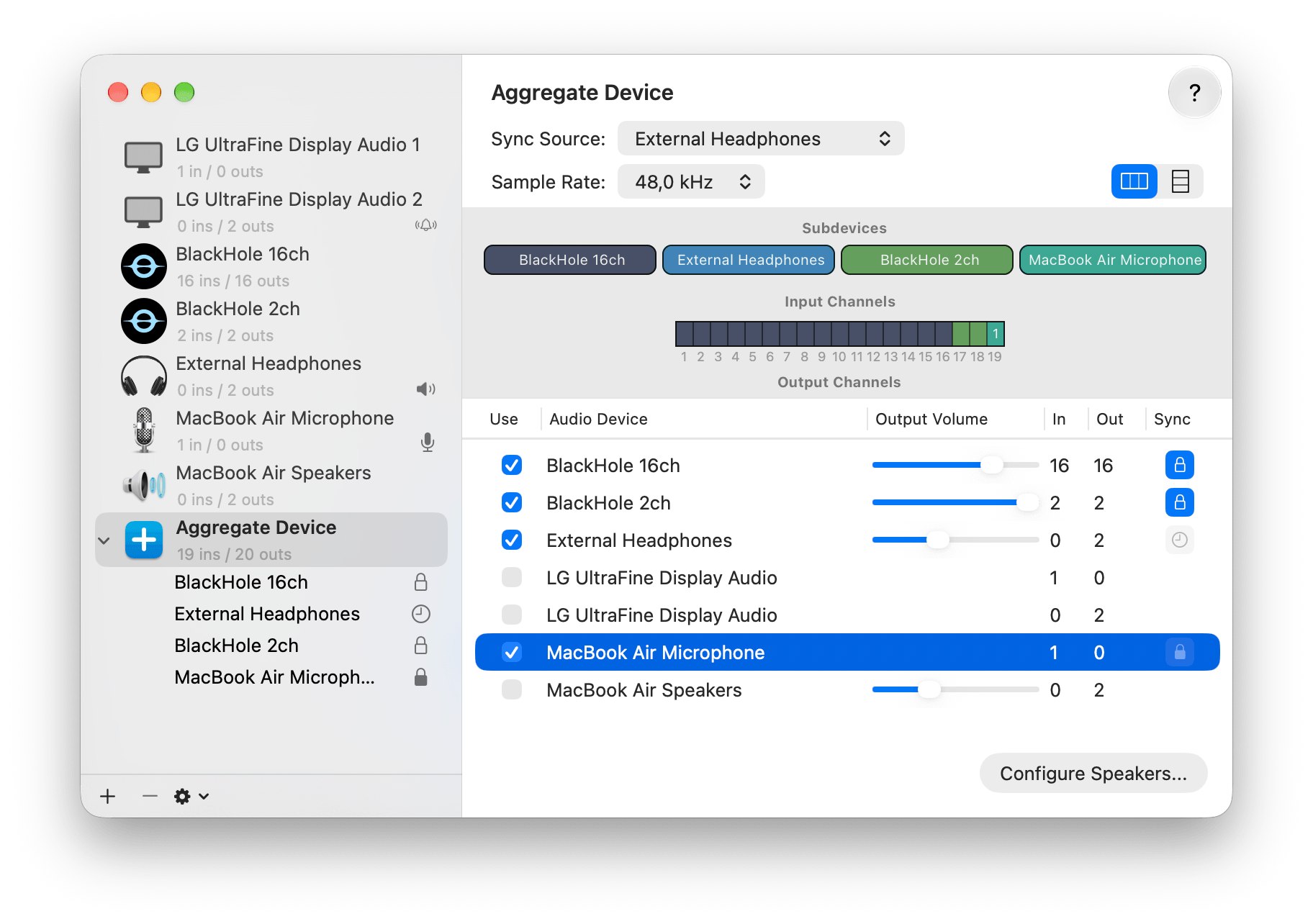
Reaper numbers the channels of the aggregate device in the order of the devices. In this example inputs 1 to 16 are the guests (BlackHole 16ch), 17 and 18 are BlackHole 2ch, 19 is the microphone; outputs 17 and 18 are the headphones, 19 and 20 are BlackHole 2ch. The colored bar in Audio MIDI Setup shows the order of yours.
3. Set up Reaper
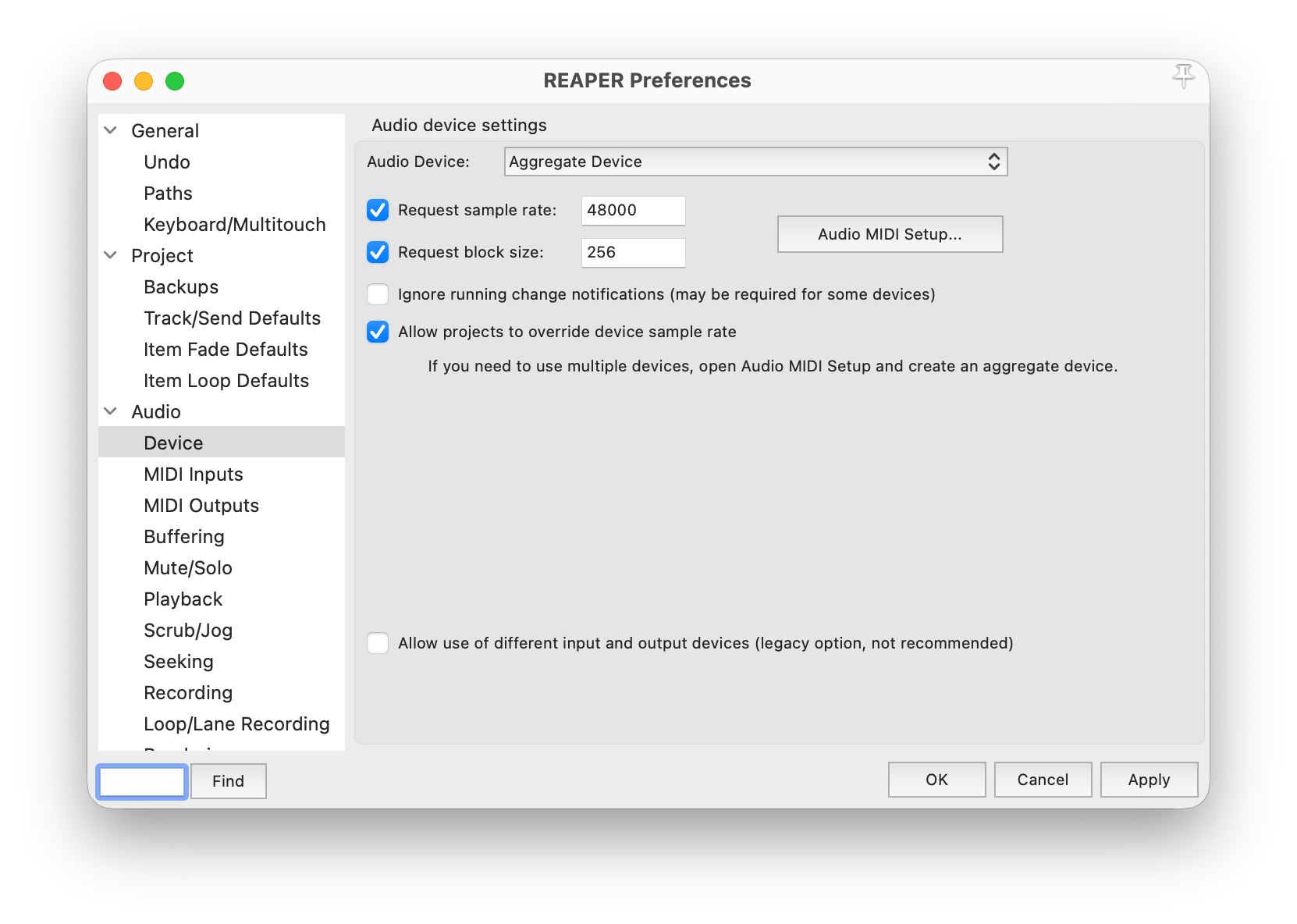
Under Preferences → Audio → Device, choose the aggregate device as Audio Device, request 48000 Hz and a small block size, 256 samples or less.
Then create these tracks:
| Track | Input | Output | Notes |
|---|---|---|---|
| Guest 1, Guest 2, … (one per guest) | Mono, input 1, 2, … (BlackHole 16ch channel 1, 2, …) | Master | Arm for recording and switch on Record monitoring, otherwise you do not hear the guest. |
| You | your microphone, mono (in the example input 19) | Master | as usual |
| Jingles, clips | - | Master | as usual |
| To Briefing (bus) | Receives from You and the jingles, not from the guest tracks | Hardware output on the two outputs of BlackHole 2ch (in the example 19/20); Master send off | Level so that Briefing’s meter stays green. |
Route the master to the outputs of your headphones (in the example 17/18). By default Reaper sends it to outputs 1/2, which would be BlackHole 16ch here, and you would hear nothing. Ultraschall users can keep their usual project template and only add the guest tracks and the bus.
4. Start Briefing
- Open your room in Chrome or Edge.
- In the settings, choose BlackHole 2ch as microphone and High as audio quality.
- Open the section Multitrack output, choose BlackHole 16ch as output device and click Start multitrack output.
From now on you hear the call only through Reaper. The section lists which guest plays on which channel, so you can name your tracks accordingly. Your microphone, that is Reaper’s bus, is sent without the browser’s echo cancellation, noise suppression and automatic level, because Reaper already delivers a clean signal.
5. Sound check
Invite a guest, or join the room with a second device, and check:
- You hear the guest in your headphones, and their track in Reaper shows a level.
- The guest hears you and your jingles.
- The guest does not hear themselves. If they do, a guest track reaches the bus “To Briefing”, or the master also goes to BlackHole 2ch.
During the show
- Everybody sees it: while the multitrack output runs, everybody in the room sees a “Multitrack” indicator with your name, just like a recording. You stop it there or in the settings; leaving the room stops it too.
- Channels stay put: whoever loses the connection gets the same channel back when they return. Somebody new only takes over a channel when all are taken. If there are more guests than channels, the rest also plays on the last channel.
- Your own voice is not on the device: Reaper has your microphone directly.
- Moderated rooms: only moderators can start the multitrack output.
Going live
For your listeners out there everything stays as you know it: Briefing only brings your guests into the studio program, the broadcast goes out from there. Because the guests are ordinary tracks in Reaper, their sound is already in your master mix.
- Ultraschall with Studio Link OnAir: switch it on at the master as usual and go live. The stream goes to Studio Link’s Icecast server, your listeners tune in via Podlove, your website or the OnAir link.
- Your own Icecast server: if you do not want to depend on somebody else’s service, send the master with an encoder to your own or a rented Icecast server. Icecast is a free streaming server: one source sends the mix, any number of listeners pick it up.
Tell your guests you are live
Briefing shows everybody in the room that you pass the call on to a studio program. That it is broadcast publicly from there is something Briefing cannot see. Tell your guests beforehand.
We have not yet tried the multitrack output together with Studio Link OnAir ourselves.
Troubleshooting
| What you notice | Cause and fix |
|---|---|
| No section Multitrack output | Firefox or Safari: use Chrome or Edge. Otherwise the multitrack output is not switched on for this Briefing instance. |
| Briefing reports only 2 channels | In Audio MIDI Setup, select BlackHole 16ch, click Configure Speakers…, choose Multichannel with 16 channels, reload the page. |
| You do not hear a guest | Record monitoring of the track is off, its input is the wrong channel, or the multitrack output is not running. |
| Guests hear themselves | The bus “To Briefing” receives a guest track, or the master also goes to BlackHole 2ch. |
| Crackles or dropouts after a while | In the aggregate device, choose your real hardware as sync source and lock both BlackHole devices in the Sync column (drift correction). |
| Your voice pumps for the guests | Lower the level of the bus. |
Questions
Do my guests need anything? No. They join by link in their browser, also on a phone, without an account or app. They see that you pass the call on to a studio program.
Does the server hear anything? No. The sound goes end-to-end encrypted between the participants, and only your own browser hands it to your own computer’s audio devices.
Does it work on Windows or Linux? In principle yes, with other virtual devices: on Windows VB-Audio Virtual Cable or VoiceMeeter, on Linux two PipeWire sinks. We have only tested macOS so far.
Why not Firefox or Safari? They cannot send sound from a web page to a chosen device with more than two channels. Firefox can only do it via the system’s default output, which would put every other sound of the computer into your show as well.
Do I need a plugin in Reaper? No. The two virtual devices are all it takes.